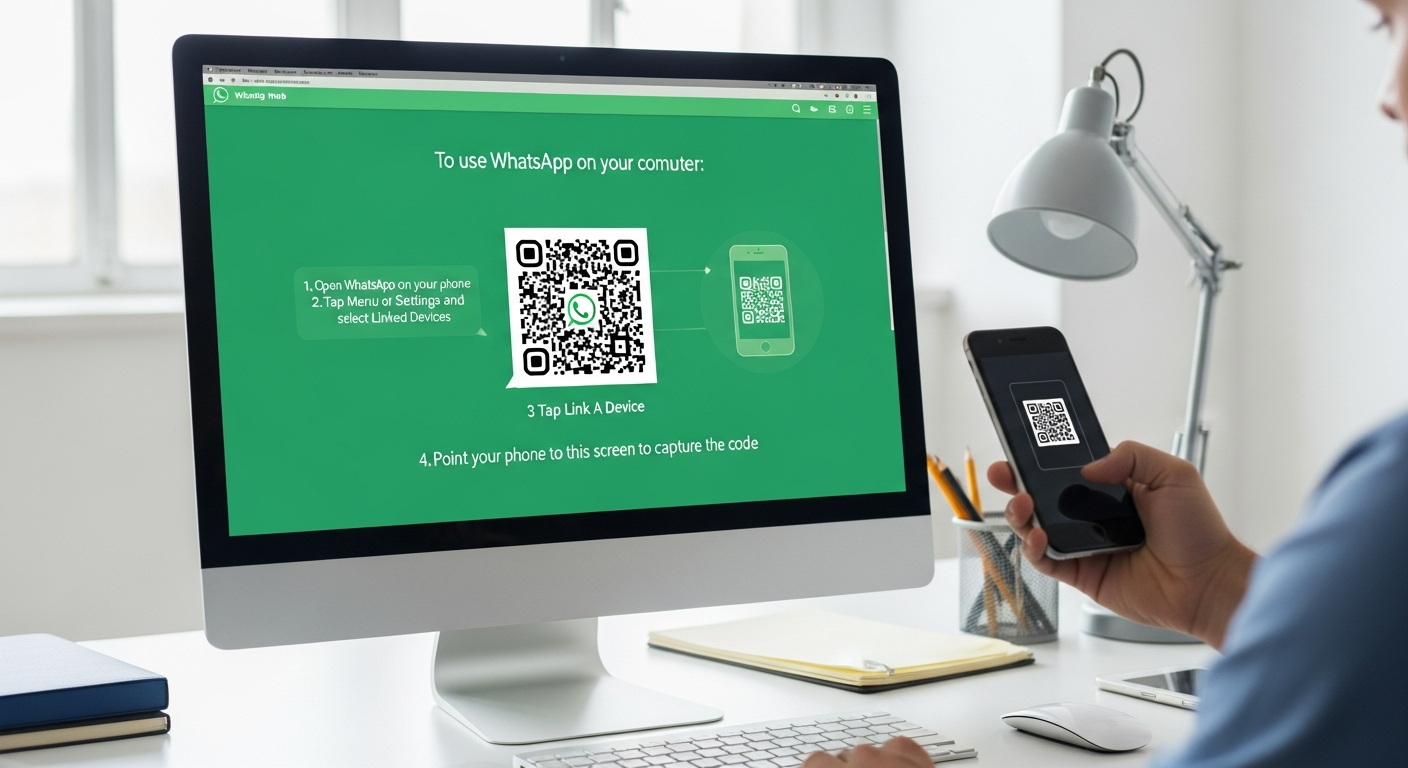
WhatsApp Web Login is one of the easiest ways to use WhatsApp on your computer. It lets you send messages, photos, and videos using a web browser. You don’t need to download anything! Just open WhatsApp Web, scan the QR code with your phone, and you’re ready. This is great for students, office workers, and anyone who types faster on a keyboard.
But it’s not only about convenience. Using WhatsApp Web also needs safety and privacy. If you stay logged in on a public computer, your chats could be seen by others. So in this guide, you’ll learn how to login safely, how to log out, and how to fix common problems. Let’s begin!
What Is WhatsApp Web Login?
WhatsApp Web login is the process of connecting your WhatsApp account to a computer. You do this by scanning a QR code shown on the WhatsApp Web website. Once connected, your phone and computer stay synced. This means every message you send or receive on your phone also appears on the web.
This is helpful for people who work on a PC all day. You can reply faster, type easily, and even use the mouse to open chats. The web login is safe because it uses end-to-end encryption. Still, you should only use it on devices you trust.
How to Do WhatsApp Web Login (Step-by-Step)
To start WhatsApp Web login, open a browser like Chrome, Firefox, or Edge. Go to web.whatsapp.com and you’ll see a QR code. Then open WhatsApp on your phone and tap the three dots or settings menu. Select Linked Devices and then Link a Device. Point your phone camera at the QR code.
Once scanned, your WhatsApp will open on the computer. Your chats and contacts will show up instantly. You can now send messages, voice notes, and photos from your computer. It’s a smooth and fast process, and it takes less than a minute.
WhatsApp Web Login Security Tips
Safety is important when using WhatsApp Web. Always log out after using it on shared or public computers. If you stay logged in, anyone else using the same computer could read your chats.
Also, never share your QR code with others. The QR code is like a key to your account. If someone scans it, they can access your chats. Always check the Linked Devices section in your phone to see where you are logged in. If you find any unknown device, log out immediately.
Why WhatsApp Web Login Is Useful
WhatsApp Web is useful for many reasons. If you type a lot, a keyboard makes messaging faster. You can also manage group chats easily and send files from your computer.
For work, it’s very helpful because you can share documents, screenshots, and links quickly. If your phone is charging in another room, you can still use WhatsApp on your PC. This feature makes your life easier and more productive.
Does WhatsApp Web Work Without Your Phone?
No, WhatsApp Web login needs your phone to be connected to the internet. Even though you use a browser, the messages still go through your phone. If your phone loses connection, WhatsApp Web will stop working.
So keep your phone connected to Wi-Fi or mobile data. If you want to stay online for longer, make sure your phone battery is charged. WhatsApp Web is designed to be a mirror of your phone, not a separate account.
WhatsApp Web Login vs WhatsApp Desktop App
WhatsApp Web login works through a browser. The WhatsApp Desktop app is a separate program you download. Both offer the same features, but the desktop app can feel faster and more stable.
If you use WhatsApp daily on a PC, the desktop app is a good choice. But if you only need it occasionally, WhatsApp Web is easier because you don’t have to install anything. Either way, both options use the same secure connection to your phone.
Common WhatsApp Web Login Problems (And Fixes)
Sometimes WhatsApp Web may not work properly. The most common issues include the QR code not scanning or messages not syncing.
If the QR code won’t scan, make sure your phone camera is clean and the screen brightness is high. If messages don’t sync, check your phone internet connection. Also, try refreshing the web page or restarting the browser. These simple steps usually fix most problems quickly.
WhatsApp Web Login Biography Table
| Feature | Details | Why It Matters |
| How It Works | Connects phone to PC via QR code | Makes messaging easier |
| Requirements | Phone + internet + browser | Needed to stay synced |
| Security | End-to-end encryption | Keeps chats safe |
| Best Use | Office, school, home | Faster typing & file sharing |
| Limitations | Phone must stay online | Web stops if phone disconnects |
| Logout Option | Linked Devices → Log out | Prevents unauthorized access |
| Supported Browsers | Chrome, Firefox, Edge | Works on most computers |
| Best Tip | Always log out on public PCs | Protects your privacy |
How to Log Out of WhatsApp Web Login
Logging out is very easy. On your phone, open WhatsApp and go to Linked Devices. You will see all devices where you are logged in. Tap the computer device and select Log Out.
If you forgot to log out on a public computer, you can still log out from your phone. This helps keep your messages safe. Always log out when you finish using WhatsApp Web, especially if you used a shared device.
Best Practices for Using WhatsApp Web Login
To use WhatsApp Web safely and smoothly, follow these tips:
- Always log out after using it.
- Don’t use WhatsApp Web on public computers.
- Check Linked Devices often.
- Use a strong lock screen on your phone.
- Avoid clicking suspicious links in chats.
These habits help protect your account and keep your messages private. They also make WhatsApp Web a better experience.
WhatsApp Web Login: Real Example
Here’s a real example. Imagine you are doing homework on a laptop. Your phone is in another room charging. You need to send a message to your teacher. Instead of running to your phone, you open WhatsApp Web and reply quickly.
This saves time and keeps your workflow smooth. Many people use WhatsApp Web this way every day, especially when working or studying. It’s a simple tool that makes communication easier.
(FAQs)
1. Is WhatsApp Web login safe?
Yes, it is safe when used properly. Always log out on shared devices and keep your phone secure.
2. Do I need my phone for WhatsApp Web?
Yes, your phone must stay connected to the internet for WhatsApp Web to work.
3. Can I use WhatsApp Web on any browser?
Most modern browsers like Chrome, Firefox, and Edge support WhatsApp Web.
4. What if the QR code doesn’t scan?
Try cleaning your camera, increasing screen brightness, or refreshing the page.
5. How many devices can I connect?
You can connect multiple devices, but you should only use trusted computers.
6. Can someone see my chats if I leave WhatsApp Web logged in?
Yes, if someone uses that computer, they can read your chats. Always log out.
Conclusion: Start Your WhatsApp Web Login Today
WhatsApp Web login is a simple and useful tool for everyone. It makes messaging faster and more convenient, especially when you work on a computer. Remember to stay safe by logging out on shared devices and checking your linked devices often.
If you want to improve your productivity, try using WhatsApp Web today. And if you face any issue, come back here for quick fixes. Want a guide on WhatsApp Desktop too? Just ask!